Tag: Documentation Center

  • From Messy Notes to Clear SOPs: Using an AI SOP Generator at Your MSP

    From Messy Notes to Clear SOPs: Using an AI SOP Generator at Your MSP

    Every MSP has that one technician who knows how to do everything, and wrote none of it down. When they’re on vacation, the team is stuck. Writing standard operating procedures (SOPs) takes time nobody has. An AI SOP generator can change that by turning a quick, rough description into clear, step-by-step instructions in minutes.

    In this post, we’ll show how AI can help MSPs write SOPs faster, what to watch out for, and how it works inside RebelPSA’s Documentation Center.

    Why SOPs Don’t Get Written

    • No time. Tickets always feel more urgent than documentation.
    • Blank page fear. It’s hard to know where to start.
    • Writing is hard. Great techs aren’t always great writers.
    • It feels like it’ll change anyway. So why bother?

    The result is knowledge that lives in people’s heads. That’s risky. When someone leaves, the knowledge leaves with them.

    How an AI SOP Generator Helps

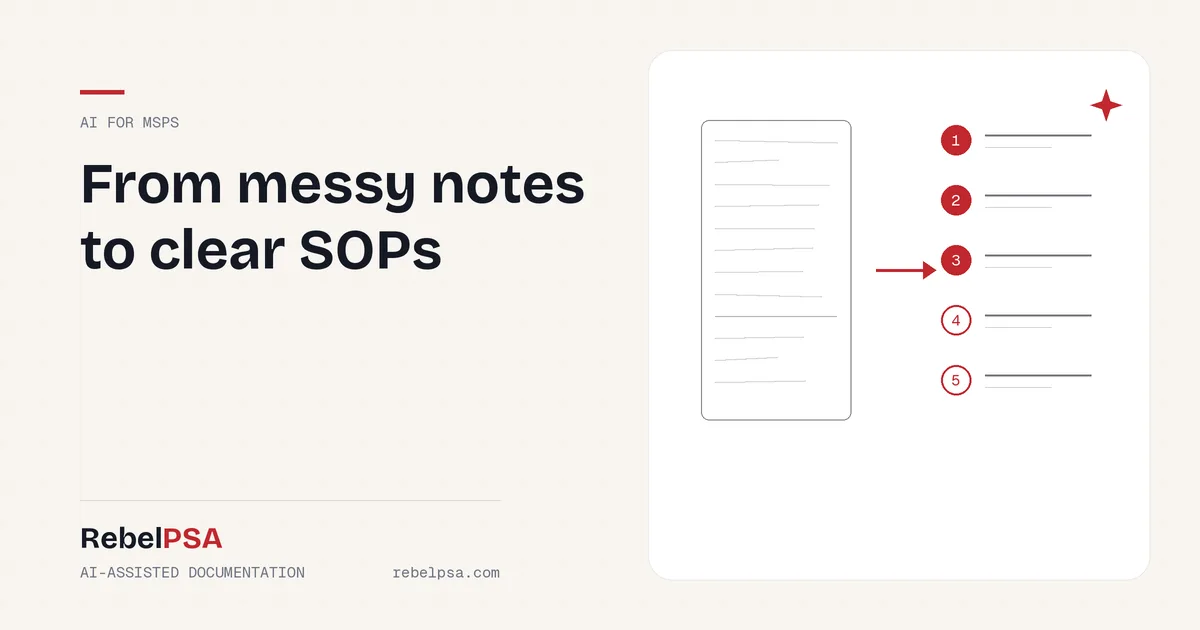
    Explaining a task out loud is much easier than writing a formal document. An AI SOP generator lets your technician describe the process in their own words, like they’re telling a coworker. The AI organizes it into a clean document with numbered steps.

    For example, a tech might type: “To onboard a new user, make the account in 365, give them the right license, add them to the sales group, set up MFA, then send the welcome email.” The AI turns that into a tidy, numbered SOP your whole team can follow.

    AI-Assisted Documentation in RebelPSA

    Smart SOP Generation

    In RebelPSA’s Documentation Center, a technician can describe a procedure in plain text, and AI creates a structured, step-by-step document. It opens right in the built-in editor, so the tech can review and adjust it before saving.

    Outline Suggestions

    Starting a new document? AI can suggest a starter outline based on the type of document you’re writing. It shows up in a side panel you can use or close. It’s never dropped into your document without your say.

    Keeping Docs Fresh

    Old SOPs can be worse than none at all. AI can help flag documents that look out of date and spot documents that seem to cover the same thing. Your team decides what to update, merge, or archive.

    Always Review AI-Written SOPs

    AI is a great first-draft writer, but it can make mistakes. It might put steps in the wrong order or add a step that doesn’t apply. Before saving any AI-written SOP, have the person who knows the process read it line by line. Better yet, have a second person test the steps. A wrong SOP can cause real damage.

    Tips for Better AI SOPs

    1. Be specific. Name the tools, settings, and groups involved.
    2. Include the “why.” Short reasons help readers avoid mistakes.
    3. Leave out passwords. Never include passwords or secret keys in what you give the AI.
    4. Add warnings. Note any step that could cause downtime.
    5. Test it. Have someone else follow the SOP once before you trust it.

    Frequently Asked Questions

    What is an AI SOP generator?

    It’s a tool that uses AI to turn a plain description of a task into a clear, step-by-step procedure.

    Can I edit the SOP after AI writes it?

    Yes. In RebelPSA, the generated SOP opens in the editor so you can review and change anything before saving.

    Can I write SOPs without AI?

    Yes. The Documentation Center works fully without AI. AI is an optional helper.

    Get Knowledge Out of Heads and Into Docs

    Your team’s knowledge is one of your most valuable assets. With AI doing the first draft, writing SOPs goes from a dreaded chore to a quick task.

    See AI-assisted documentation in RebelPSA. Visit rebelpsa.com to book a demo.
  • Switching Documentation Tools Without Starting From Scratch

    Switching Documentation Tools Without Starting From Scratch

    Many MSPs know their documentation tool isn’t working for them. But they stay anyway. Why? Because moving years of client notes, asset records, and how-to articles feels impossible. Nobody wants to copy thousands of pages by hand. A good MSP documentation migration should move your knowledge for you, safely, so your team can switch tools without starting from scratch.

    In this post, we’ll explain what makes a migration safe, what to watch out for, and how we’re building import tools into RebelPSA’s Documentation Center.

    Why MSPs Put Off Switching

    • Too much content. Years of documentation can mean thousands of records.
    • Fear of losing data. What if something important doesn’t come over?
    • Messy structure. Records in the old tool might not match the new one.
    • Downtime. Your team can’t stop working while you move.

    These are real worries. A good migration process answers each one.

    What a Safe Documentation Migration Looks Like

    Preview Before You Import

    RebelPSA’s import tools are designed to show you a summary first: what will be brought over and where there might be conflicts. You decide before anything changes.

    Keep Your Structure

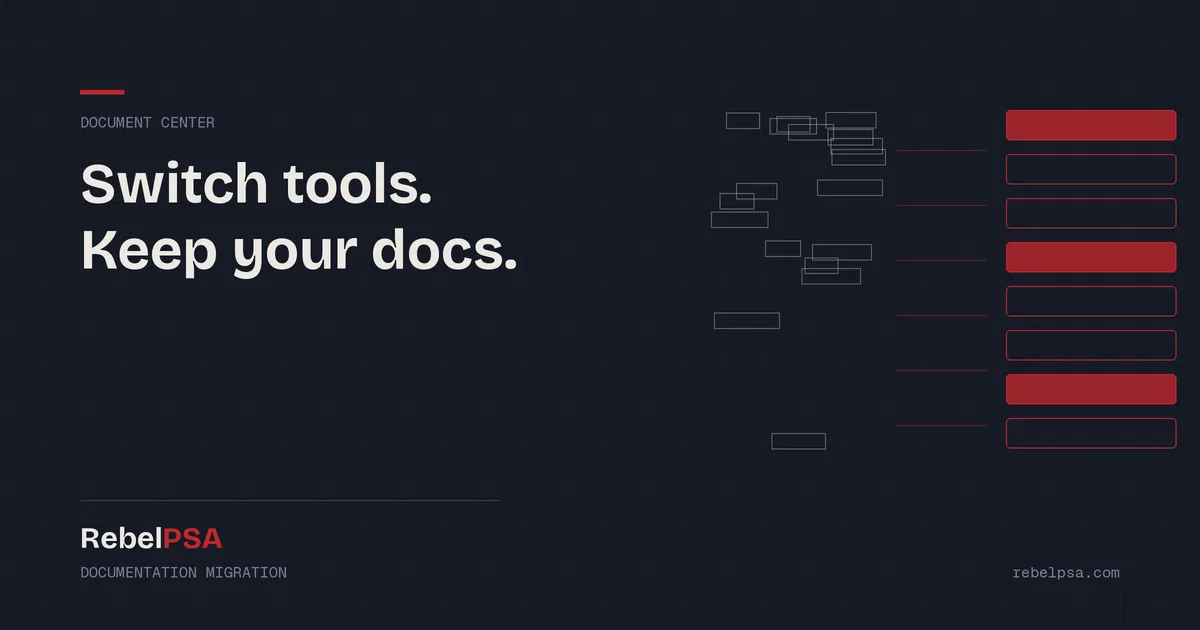
    Your old tool organized information by client, asset type, articles, and folders. The import maps each of these to its matching place in RebelPSA: clients, structured documentation templates, knowledge base articles, and folders. Your team will recognize their documentation in its new home.

    Runs in the Background

    Large imports run in the background. Your team keeps working while the move happens.

    An Undo Button

    Mistakes happen. RebelPSA tracks each import batch, so if something doesn’t look right, you can roll that batch back within a set window instead of cleaning up by hand.

    A Note About Passwords

    Many documentation tools store passwords. For security, RebelPSA does not copy password values during an import. Instead, it creates a placeholder so you know a credential belongs there, and your team re-enters it securely. This keeps passwords from passing through export files, where they could be exposed. It takes a little extra time, but it’s the safe way to move sensitive data.

    Tips for a Smooth Migration

    1. Clean up first. Archive old clients and outdated docs before you move.
    2. Start with one client. Test the import on a small client and check the results.
    3. Plan your templates. Decide how asset types should look in the new system.
    4. Schedule password re-entry. Give your team time to add credentials securely.
    5. Tell your team. Let everyone know the switch date and where to find things.

    Frequently Asked Questions

    Will my documentation keep its structure?

    Yes. The import maps clients, assets, articles, and folders to matching places in RebelPSA.

    Are passwords imported?

    No. For security, password values are not imported. RebelPSA creates placeholders so your team can re-enter them safely.

    Is documentation import available now?

    Documentation import has been released for many competitor document centers, but we continue to do development and testing to further enhance the import process. Contact us to talk about your migration and timing.

    Switch Tools. Keep Your Knowledge.

    Your documentation is years of hard-won knowledge. You shouldn’t have to give it up to get a better tool. With a safe, structured migration, you can move forward and bring your knowledge with you.

    Thinking about switching? Visit rebelpsa.com to talk with our team.

  • No More Blank Pages: IT Documentation Templates That Keep Every Client Consistent

    No More Blank Pages: IT Documentation Templates That Keep Every Client Consistent

    Open the documentation for two different clients. Does it look the same? For many MSPs, the answer is no. One client has a neat page for every server. Another has a single long note that says “see email from Steve.” When every technician writes documentation their own way, nobody can find anything. IT documentation templates fix this by giving every client the same clear structure.

    In this post, we’ll explain what documentation templates are, why they matter, and how RebelPSA’s Documentation Center makes them easy to use.

    The Blank Page Problem

    A blank page is hard to fill. When a technician starts from nothing, they have to decide what to include, how to organize it, and what to call things. Most people skip important details, like the warranty date or the admin login location, just because nobody asked for them.

    A template does the deciding ahead of time. It asks the right questions, so the technician only has to answer them.

    What Are IT Documentation Templates?

    A documentation template is a ready-made layout for a certain kind of record. For example, a “Firewall” template might include fields for the make and model, the IP address, the firmware version, and the renewal date. Every firewall you document uses the same fields in the same order.

    Common templates for MSPs include:

    • Servers and network devices
    • Internet and phone service providers
    • Software licenses and renewals
    • Backup systems
    • Office locations and contacts

    How Templates Work in RebelPSA

    Build a Layout Once

    In RebelPSA’s Documentation Center, you create a layout with the fields you need. Each field has a type, like text, a date, or a number. That keeps the data neat. A date field always holds a date, not “sometime in March.”

    Fill It In for Every Client

    When a technician documents something new, they pick the template and fill in the blanks. Every client’s records follow the same pattern, so anyone on your team can jump in and understand them.

    Placeholders Save Typing

    Templates can use placeholders that fill in known details for you, so your team isn’t retyping the same information again and again.

    Easy to Search

    Because template fields are part of the Documentation Center’s search, you can find records by the values inside them, like a serial number or a model name.

    Optional AI Auto-Fill

    If your company turns on AI, RebelPSA can suggest values for template fields based on client information already in the system. Your technician reviews the suggestions before saving. Templates work fully without AI.

    Tips for Building Good Templates

    1. Start with your most common items. Firewalls, servers, and backups are good first templates.
    2. Ask “what do we need at 2:00 a.m.?” Include the details someone needs during an emergency.
    3. Keep it short. Too many fields and people stop filling them in.
    4. Get feedback. Ask your techs which fields they actually use.
    5. Update over time. Add fields when you notice something is always missing.

    Frequently Asked Questions

    What is an IT documentation template?

    It’s a ready-made layout with set fields for a certain kind of record, like a server or a firewall, so every record has the same information.

    Can I create my own templates?

    Yes. In RebelPSA, you can build your own layouts with the fields your team needs.

    Can I search by what’s inside a template?

    Yes. Template field values are included in Documentation Center search.

    Same Structure, Every Client

    Consistent documentation means faster fixes, easier handoffs, and fewer “where is that?” moments. Templates give your team a head start every time.

    See documentation templates in RebelPSA. Visit rebelpsa.com to book a demo.